How To Setup Promotions, deals and compos as specials on point of sale (POS)
Updated 28 June 2026
Video guide
1. Understand the new setup flow for POS promotions 0:00
- Promotions for the point of sale are now set up in the online portal, not directly on the POS.
- The interface has changed from Promotions to Import and Promotions.
- You’ll now see:
- Setup
- Import
- Legacy buttons for older combo/period setup options
- The reason for the change is better control, especially for multi-branch environments.
2. Know when to use the Import button 0:47
- The Import button is important for combo deals.
- You must explicitly choose when to import a deal.
- This prevents a deal from accidentally going live while you are still building it.
- Use this as the final step after creating the promotion in the portal.
3. Review the types of promotions you can create 1:19
- The video mentions several common promotion types, including:
- Beer and drink combos
- Spirits deals
- Snacks combos
- Hot food / burger / chips combos
- Cigarette combos
- Meal deals
- The example used in the demo is:
- Buy two beers, get the third free
- The presenter notes that more complex sliding-scale deals are also possible.
4. Open the promotions setup in the online portal 1:57
- From the portal, click Setup.
- The system will prompt you to open the browser or take you to the online portal.
- If needed, log in first.
- Navigate to:
- Catalogs
- Promotions and Deals
- Deal
- This is where the promotion is created.
5. Create a combo deal in the portal 2:18
- Choose the deal type that matches your promotion.
- In the example, the presenter creates a buy two, get one free style deal.
- Example items used:
- Castle Lager
- A second beer item
- Then create the deal.
- Another example shown is a bundle/combo deal with:
- Beef burger
- Cola 500
- Meal chips
- Set the combined price to R65.
6. Configure deal behavior and priority 3:10
- Leave the default setting to apply to all customers unless you need something more specific.
- Use priority if items could qualify for more than one promotion.
- Priority helps prevent double deals from triggering on the same items.
- Add a clear description so the deal is easy to identify later.
7. Import the promotion into the POS 3:49
- Go back to the POS.
- Click the Import button.
- This pulls the newly created promotion into the POS system.
- You should now see the deal items and the free item/fixed group behavior reflected in the POS.
8. Test the promotion on a live sale 4:11
- Start a new sale on the POS.
- Add the qualifying items to confirm the promotion triggers correctly.
- Example test shown:
- Add beers/ciders for the buy-two-get-one-free deal
- Add the burger, cola, and meal chips for the combo deal
- Confirm that:
- The third qualifying item becomes free
- The combo price applies correctly at R65
9. Use the online portal instead of the POS for future setup 4:59
- The presenter recommends not using the POS itself to create promotions anymore.
- The online portal is faster and easier to manage.
- If you get stuck:
- Review the video again
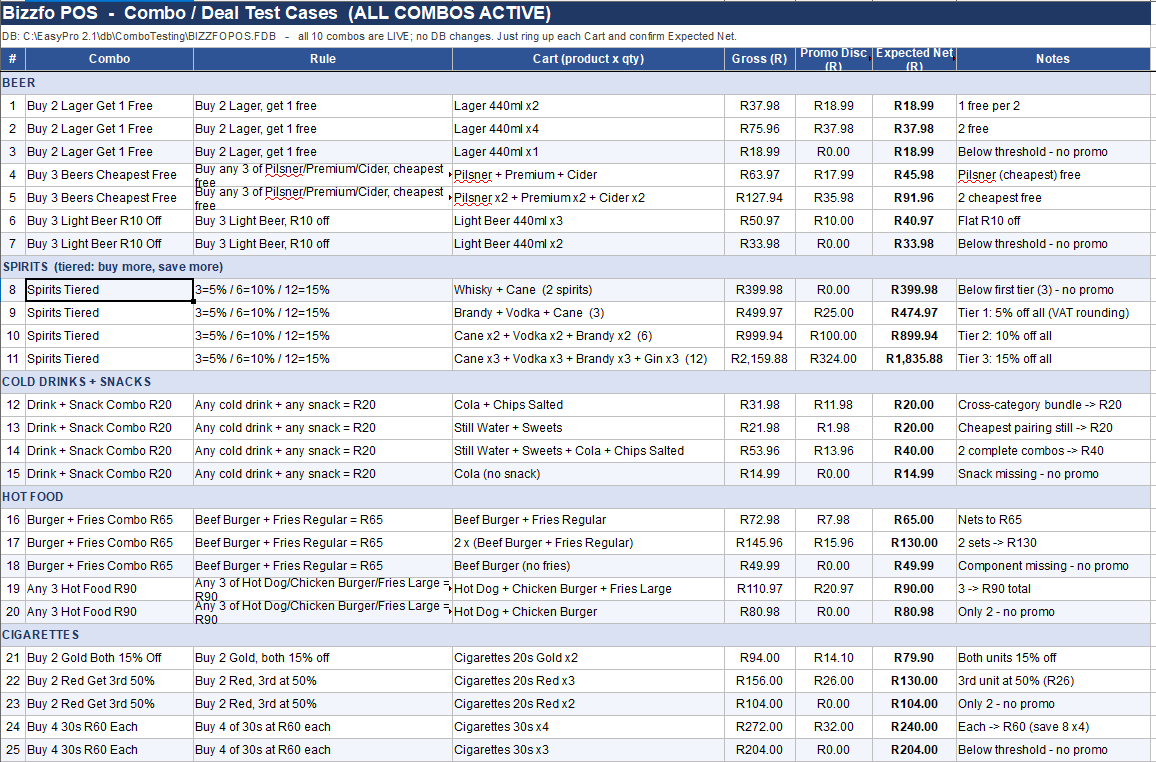
- Check the spreadsheet/list of combo examples
- Contact the help team for assistance